![Modulr_Logo_Black_LightOrange-1.png]](https://knowledge.modulrfinance.com/hs-fs/hubfs/Modulr_Logo_Black_LightOrange-1.png?height=40&name=Modulr_Logo_Black_LightOrange-1.png)
Who can activate a card?
-
Only the named Cardholder can activate a card.
-
Admins can create cards but can’t activate them on someone else’s behalf.
Security
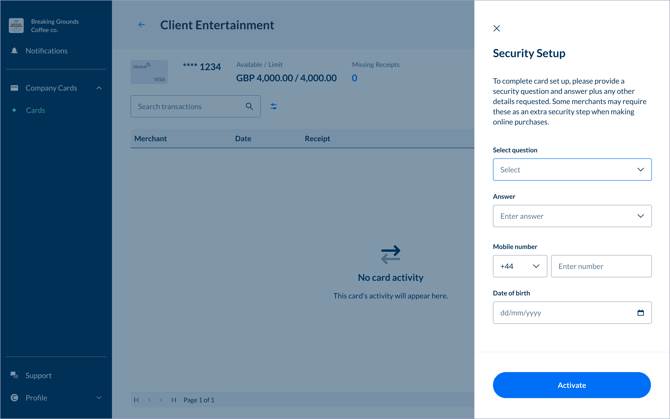
Card activation requires cardholders to complete a short form with their details. These will then be subject to a security check. In most cases you can continue immediately – if not, you'll see on-screen instructions for what to do next.
What cardholders receive
NOTE: If you’re a card admin and have created a card for yourself, you’ll be taken directly into the card activation setup after creation.
When a card is created for another user, they’ll receive a email with a secure link to start activation.
-
If they’re new to Modulr AP (i.e. not an existing team member), they’ll be taken through a few short steps to set up their Modulr AP access, then on to the new card that has been created for them, ready to activate.
Check spam/junk for emails if they don’t seem to have appeared. Make sure you can receive emails from no-reply@modulrfinance.com. If it’s still missing, ask an admin to resend or sign in and follow the steps below under Activate from the AP portal.
Existing Modulr AP users: Activate from a ‘card created’ email (recommended)
-
Open the Card created email and select Go to card.
-
Sign in if prompted.
-
You’ll be taken to your new card’s details page, a pop up window will ask you to activate the card. Select ‘Set Up Now’ (alternatively you can do this later by selecting ‘Complete Set Up’ from the card’s details page).
-
Complete the short Security Setup form. These details are needed if the card is subject to an extra security step when making a payment (e.g. you may be sent a code via SMS or need to answer the security question before you submit card details to a merchant).
-
Select ‘Activate’ – your card will now change status to ACTIVE and is ready to use.
New Modulr AP users: Register first then activate
-
New users (i.e. those without existing access to the Modulr AP portal) will receive an email inviting them to set up access to Modulr AP.
-
Select ‘Accept Invitation’ in the email and follow the steps to register on the Modulr AP Portal.
-
Follow the steps below in ‘Activate from the portal’ to activate your card.
Activate from the portal (if you don’t have the email)
-
Sign in to the Modulr AP portal.
-
Go to Company cards → Cards.
-
Find your card with status initialised and open it.
-
Select Complete Setup
-
Complete the short Security Setup form. These details are needed if the card is subject to an extra security step when making a payment (e.g. you may be sent a code via SMS or need to answer the security question before you submit card details to a merchant).
-
Select ‘Activate’ – your card will now change status to ACTIVE and is ready to use.
