![Modulr_Logo_Black_LightOrange-1.png]](https://knowledge.modulrfinance.com/hs-fs/hubfs/Modulr_Logo_Black_LightOrange-1.png?height=40&name=Modulr_Logo_Black_LightOrange-1.png)
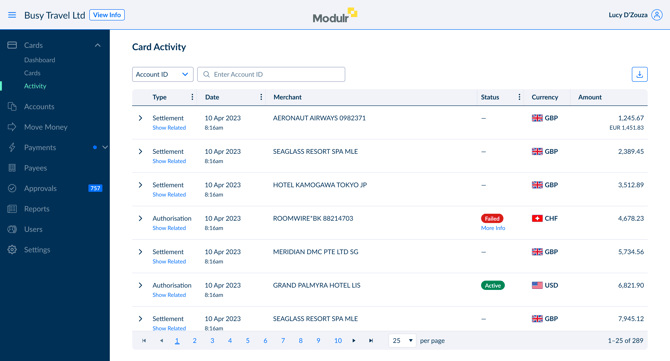
Card Activity shows what your suppliers have done with your virtual cards over the last seven days: what they authorised, what they charged, what they reversed (reversals) and what they refunded.
Go to Cards → Activity in the side menu.
This screen, or the daily report?
Both exist because they answer different questions.
| Card Activity | Daily Card Activity report | |
|---|---|---|
| How current | Authorisations in real-time; settlements after 06:30 BST | Yesterday’s activity, once a day |
| How far back | Seven days | Three months, day by day |
| Booking detail | Not on the row. Click through to the card | Custom fields shown on every row |
| Export | The page you are on, up to 500 rows | The full day, whatever the volume |
Looking for a charge that took place this morning? Use this screen. Reconciling last month? Use the report.
The list
Rows show most recent activities first. Each row represents one activity on one card.
| Column | What it shows |
|---|---|
| Type | The kind of activity. See below. |
| Transaction date | When the transaction happened. |
| Merchant | The supplier’s trading name, as registered with their acquirer. Often not the name you booked with. |
| Status | How far it has got. Not every type has one. See below. |
| Currency | The card’s currency. |
| Amount | What was charged. When the charge was in another currency, the billing currency and amount are shown underneath. |
Since card and booking details are associated with the card, not to the activity, they are not in this list. Recognise a row by its merchant, amount and time. You can click the row to open the card.
Activity types
One transaction usually makes more than one row. A hotel authorising at check-in and taking the money three days later creates two.
| Type | What it means |
|---|---|
| Authorisation | The supplier asked to charge the card. Money is reserved, not moved. |
| Settlement | The supplier received the money. Funds have left your account. |
| Reversal | The supplier cancelled or reduced an authorisation. Reserved money is released. |
| Refund | Money coming back from a supplier. |
| Credit Authorisation | A refund is on its way but has not arrived. |
| Original Credit | Money pushed onto the card and credited almost at once. |
| Offline Transaction |
A charge taken without checking with us first, so it appears after the event. |
Statuses
| Status | What it means |
|---|---|
| Approved | The authorisation succeeded. Funds are reserved. |
| Declined | The authorisation was refused. More Info explains why. |
| Settled | The supplier has received the funds. |
| Expired | Didn’t settle within 11 days, so the reserved funds came back to you. |
| Applied | An original credit has been credited to the card. |
| Pending | A refund is approved and waiting to settle. |
| — |
Settlements, reversals and refunds carry no status. They have already happened. |
Show Related
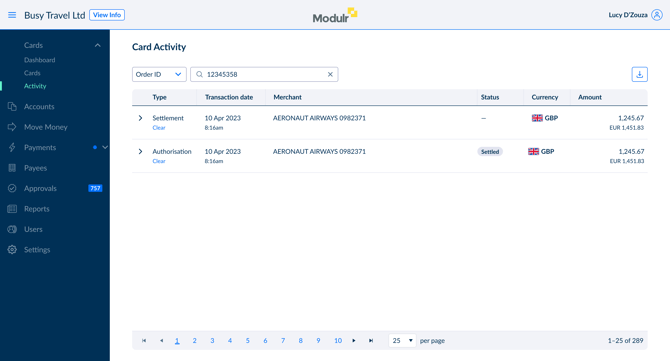
Every row has a Show Related link under its type. Click it and the list narrows to the other activities in the same transaction: the authorisation, any reversals, and the settlement. The link becomes Clear, which returns you to the full list.
A hotel authorises £420 at check-in. Three days later it settles at £455, because of the minibar. Those are two rows, days apart, with other activity in between. Show Related on either one puts them side by side.
Search and filter
Pick what to search by in the dropdown above the list, then type the value.
| Search by | Returns |
|---|---|
| Account ID | All activity on one funding account |
| Card ID | All activity on one card |
| Order ID | All activities in one transaction |
Each option checks the format of what you type and shows the expected pattern if it does not match; for example, “Card IDs start with V followed by at least 9 characters (A–Z, 0–9)”. Click the ✕ to clear a search.
Three columns filter from the ⋮ in their header: Type, Transaction date (a range, with sorting) and Status. Filters combine with whatever you have searched for.
Settlements, reversals and refunds carry no status
Getting more detail
Expand a row (use the arrow on the left) to see more fields: MCC · Exchange rate · Merchant ID · Order ID · ID · Card ID. Use these details when you need a reference to share with us, your supplier, or your finance team.
See why an authorisation was declined by clicking More Info under the Failed badge. You’ll see a plain-language reason (for example, Restricted MCC) and the processor detail (for example, MCC (7996) not allowed.). These are the same reasons shown on the Cards Dashboard. For next steps, see Dashboard & Failed Authorisations.
Open the card by clicking anywhere on a row. You’ll find the booking reference, guest name, and other custom fields there. Click Card Activity at the top to return to the list, with your search and filters still applied.
Exporting to Excel
Click the download icon above the list (top right).
You will download the current view, up to 500 rows. The file includes what you can see on screen, plus the expanded-row fields and decline reasons. To get the right data, apply your search or filters first and set the page size to the largest option.
For a full day’s activity with booking details on every row, use the Card Activity Report instead.
Good to know
Seven days is the limit. This screen only shows the last seven days of activity across your cards. For anything older, use the reports.
An authorisation can last longer than seven days. Most charges settle in about three working days, but an authorisation can last 11 days. So you may see a settlement whose matching authorisation has already dropped out of the seven-day window. If that happens, Show Related may show fewer rows than you expect.
Refunds are not linked to the original charge. The card schemes do not tell us which charge a refund relates to. Show Related on a refund shows only the refund and its credit authorisation.
Settlements appear after 06:30 BST. Authorisations and declines appear within seconds. Settlements arrive in a daily batch. The screen loads the latest settlement data when you open it, but settlements do not update in real time.
No booking details on the row or in the export. Alias, booking reference, guest name and supplier sit on the card, not on the activity. Expand a row to see the Card ID, or click through to the card.
You cannot search by booking reference. Start from the card list instead. This screen is for finding a recent card charge.
