![Modulr_Logo_Black_LightOrange-1.png]](https://knowledge.modulrfinance.com/hs-fs/hubfs/Modulr_Logo_Black_LightOrange-1.png?height=40&name=Modulr_Logo_Black_LightOrange-1.png)
Changing team members' roles and permissions
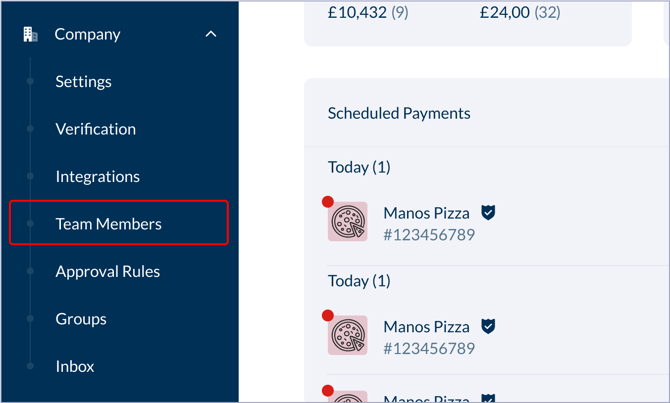
Navigate to Company → Team Members in the side menu, and then select the individual you'd like to change the role for.
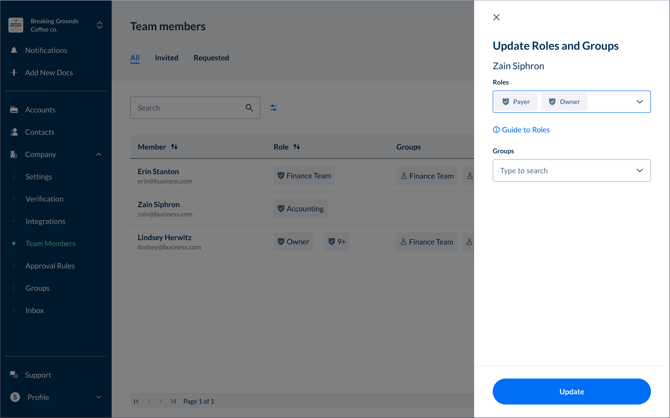
Their details appear in a side pane on the right, where you can add or remove roles or groups info. Select Update to save the changes.
1. Go to 'Company' in the side menu and select 'Team Members'.
2. Select the Team Member from the list that you want to update.
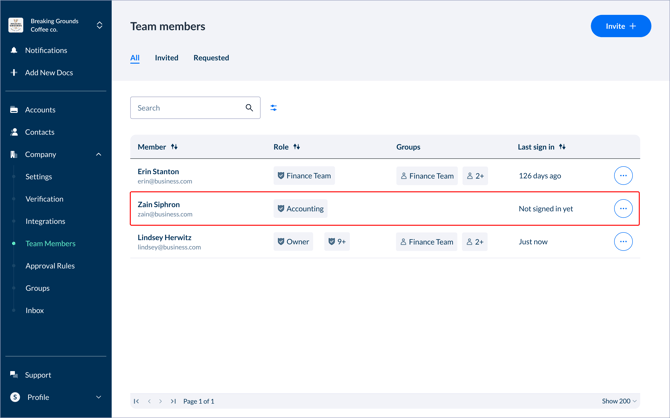
3. In the side pane that appears on the right, make any changes to Roles or Groups that you need to.
4. Select 'Update' at the bottom to save changes.
5. The user's new roles and permissions will be applied next time they sign in, or refresh the page.
For more info on the details of the different roles and permissions, go here.
Removing Team Members
To remove a team member permanently (this can't be undone):
- Navigate to Company in the side menu, then select Team Members
- Find the user you want to remove in the list
- Select the three-dots icon at the end of the row
- Select "Remove User"
