![Modulr_Logo_Black_LightOrange-1.png]](https://knowledge.modulrfinance.com/hs-fs/hubfs/Modulr_Logo_Black_LightOrange-1.png?height=40&name=Modulr_Logo_Black_LightOrange-1.png)
Who can manage polices?
Only admins can create and change card polices.
Cardholders don't have access to policies.
Viewing policies
-
Sign in to the Modulr AP portal.
-
Go to Company cards → Policies.
-
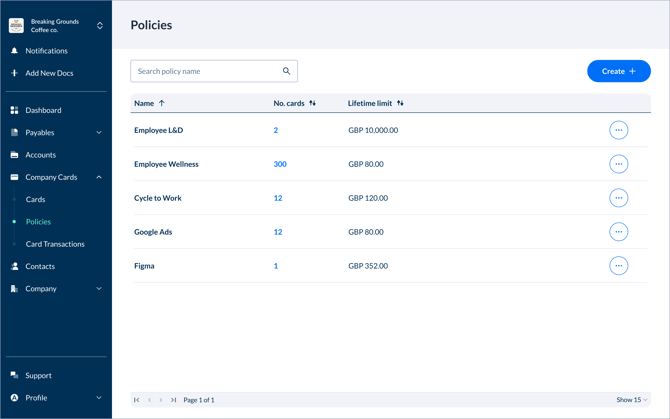
The list shows all available policies, with columns for Policy name, No. of cards with the relevant policy, Lifetime limit and Created date.
Selecting the figure in the 'number of cards' column will take you to a filtered list on the cards screen of those cards.
Don’t see Policies? Your organisation may not have Company cards enabled or you don’t have permission. Contact your administrator.
Creating a policy
-
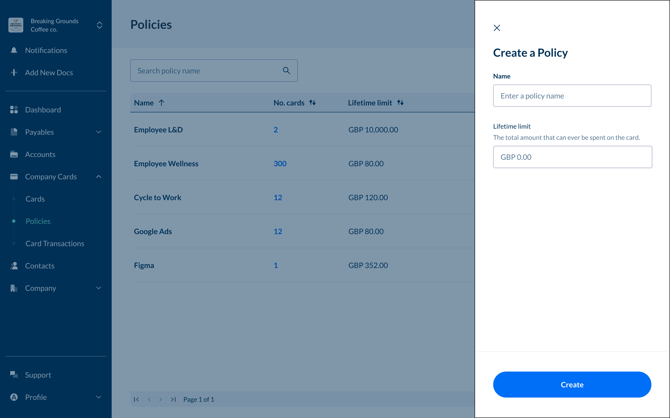
In Company cards → Policies, select Create policy.
-
Enter a Policy name: this must be unique.
-
Set the Lifetime limit: Maximum total spend for any card on this policy.
-
Select Save policy.
The new policy will be listed in the Polices table, and be available to select when creating a card.
Editing a policy
-
Select a policy from the table
-
In the side drawer that opens, change the values of the policy settings
-
Save. The policy will be updated – any card using this policy will now be using the new settings. Tip: If you lower the lifetime limit past what has already been spent, the card won’t allow any further transactions.
Deleting a policy
-
Open Company cards → Policies.
-
Locate the policy you want to delete.
-
Select Delete policy.
If a policy is still applied to any Active, Frozen, or Suspended cards, deleting it will convert those cards to standalone rules using the policy’s values.
Policy tips
-
Use clear, descriptive names (e.g., Marketing subscriptions – UK).
-
Review policies regularly to ensure limits still match your organisation’s needs.
-
For one‑off rules, you can set limits directly on a card instead of creating a policy.
