![Modulr_Logo_Black_LightOrange-1.png]](https://knowledge.modulrfinance.com/hs-fs/hubfs/Modulr_Logo_Black_LightOrange-1.png?height=40&name=Modulr_Logo_Black_LightOrange-1.png)
Receipts can then be submitted and synced back to the ledger. They’ll be marked as ‘Paid’*, similar to a regular invoice in AP.
*Transactions may appear as ‘Pending Payment’ if the transaction hasn’t settled yet.
Reviewing a Receipt
-
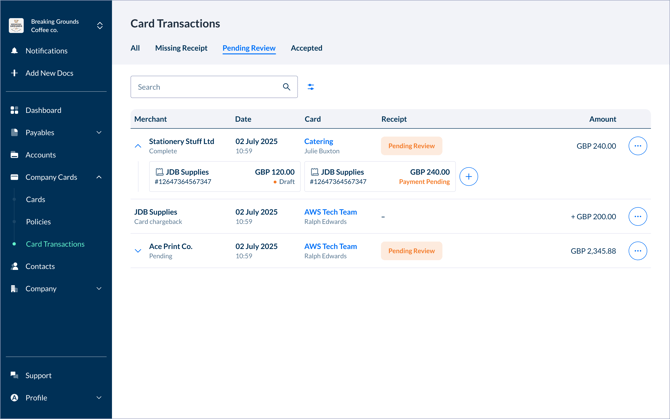
Go to ‘Company Cards’ in the side menu, then select ‘Card Transactions’
-
Select the ‘Pending Review’ tab at the top
-
This will show only transactions that have receipts added, and now need reviewing
-
Select the chevron on left of a row to see the added receipts for that transaction – select a receipt you’ll be taken to the main detail view of the receipt
-
Here, Admins can check the details, modify, and Submit – this will mark the Receipt as Paid (or Pending Payment). Cardholders will see the receipt status as ‘Accepted’
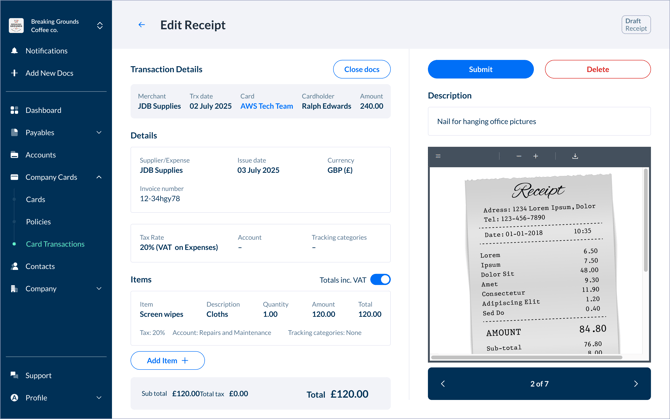
If there’s mismatched data or the receipt doesn’t match the transaction, Admins can select Delete – the Cardholder will need to upload the correct receipt to be reviewed again.
