![Modulr_Logo_Black_LightOrange-1.png]](https://knowledge.modulrfinance.com/hs-fs/hubfs/Modulr_Logo_Black_LightOrange-1.png?height=40&name=Modulr_Logo_Black_LightOrange-1.png)
Moneysoft makes it easy to generate BACS 18 payment files that work with your Modulr account. Follow these steps to configure Moneysoft and export payment files.
Configure your Modulr account details
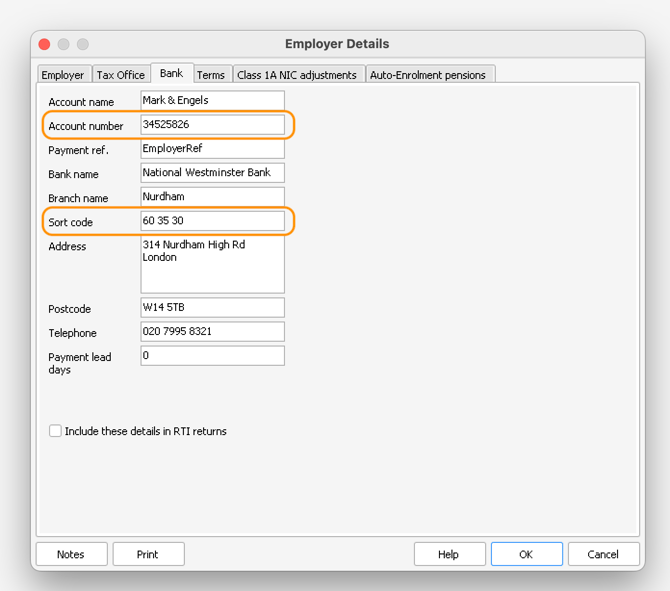
Before creating payment files, you'll need to set up your Modulr account details in Moneysoft. You only need to do this once.
- Select Employer from the main menu, then click Employer Details
- Click the Bank tab
- Enter your Modulr sort code and account number
- Click OK to save
Create and export your payment file
Once configured, follow these steps each time you need to make payments:
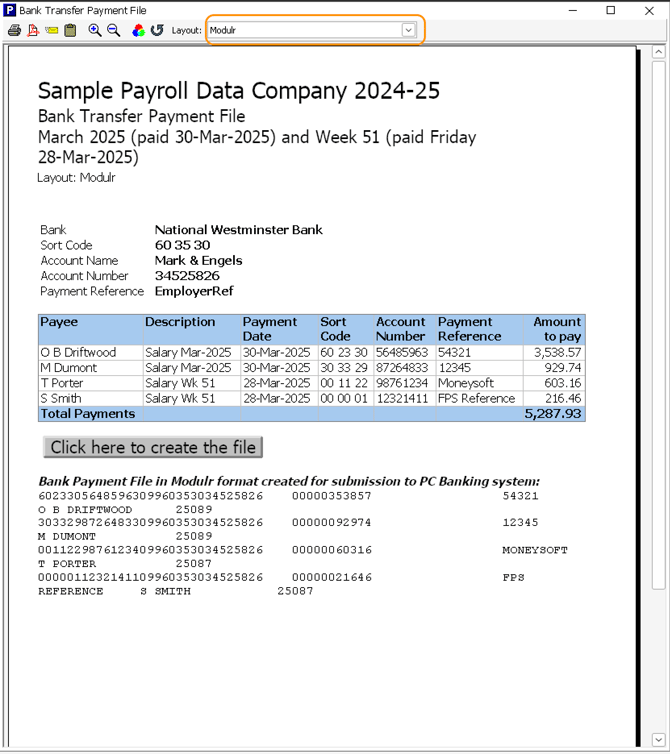
- Select Pay from the main menu, then Payments > Bank Transfer File
- In the toolbar, click the Layout dropdown and select Modulr (this format ensures compatibility with Modulr's BACS 18 processing)
- Click Click Here to Create File and save the file to your computer
Upload to Modulr
Log into your Modulr account and upload your payment file to process your payments.
Modulr Layout Selection Demo
