![Modulr_Logo_Black_LightOrange-1.png]](https://knowledge.modulrfinance.com/hs-fs/hubfs/Modulr_Logo_Black_LightOrange-1.png?height=40&name=Modulr_Logo_Black_LightOrange-1.png)
Who can do what?
-
Card Admins: can view all cards; can Freeze/Unfreeze, and Cancel or Delete cards (depending on their status) from the Card Options menu.
- Card Admins see a separate item in the side menu showing all card Transactions from all cards in the business. Admins can't see the full card details of other users' cards such as the 16-digit number, expiry date etc.
-
Cardholders: can only view their own card’s details (including the full 16-digit number where permitted by your organisation’s policies), card transactions, can Freeze their card and Unfreeze if they were the one who froze it. They can also Cancel their own cards at any time.
Don’t see the card you expect? Contact us to confirm your access.
Card summary
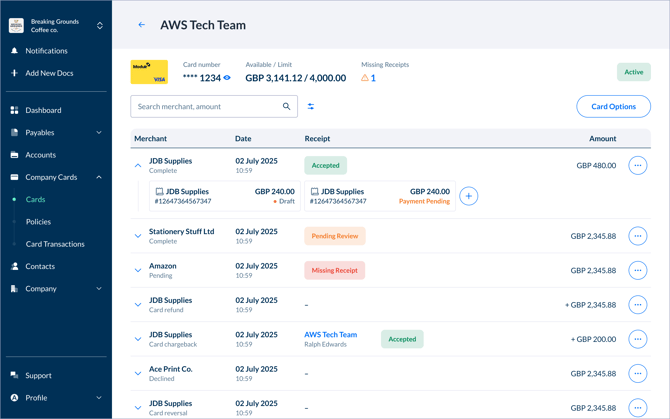
At the top of the card details page you’ll see a summary of some top-line details at a glance:
-
Card name and last 4 digits (card number is otherwise masked).
-
Status: Initialised, Active, Frozen, Suspended, Expired, Cancelled.
-
Available spend and Spend limit.
Card Options
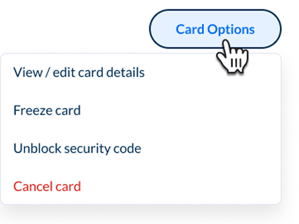
Your available card options depend on your role and the card’s current status.
View / Edit card details
-
In the Card Details view, Select View / Edit card details from the Card Options menu to open its Card details side drawer.
-
View all the card’s settings and properties here. Admins can change some of this information depending on the status of the card, for example, they could change the policy bound to the card, or change the cancellation date.
- Cardholders can reveal the secure details on the card here – the full 16-digit number, security code and billing address. This action requires an MFA interaction.
Freeze / Unfreeze
This is useful if you believe someone else may have fraudulent access to your card’s details, or an Admin needs to freeze a cardholder's card.
-
Freeze an Active card to block new transactions.
-
Unfreeze a Frozen card to allow spending again.
-
If an administrator freezes a card, the cardholder will require an administrator to Unfreeze the card.
Cancel (Admins only)
-
Cancel an Active or Frozen card to permanently stop use. Past transactions remain visible.
-
Cancellation can’t be undone.
Delete (Admins only)
-
Delete an Initialised card that is no longer needed before it becomes activated.
Troubleshooting
-
Unfreeze is disabled: The card was frozen by an administrator. Ask them to unfreeze it.
-
I can’t cancel or delete: You need administrator permissions.
-
I can’t see full card details: Only the named cardholder can see the card details.
-
The link expired – Sign in to the portal and activate from Company cards → Cards.
-
I can’t see my card – Your card may not be assigned to you yet. Ask an administrator to confirm the Cardholder.
-
Card still shows Initialised – Refresh the page after a minute. If it remains Initialised, complete the activation steps again or contact support.
Card transactions and receipts
The Transactions table on the card details view lists recent activity for the card, newest first. You’ll typically see:
-
Date & time, Merchant, Amount, and Status (e.g., Pending, Complete, Declined, Expired, Refund, Credit)
-
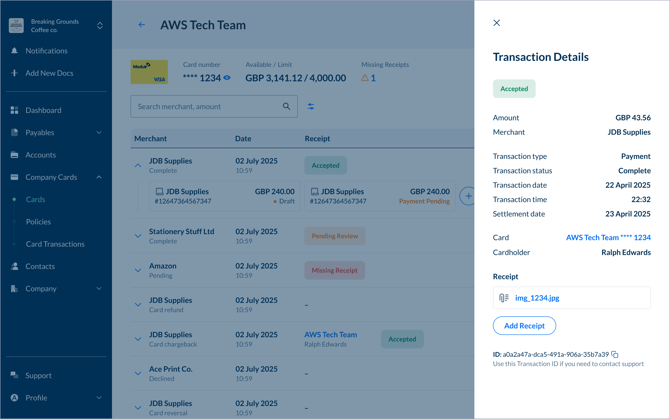
Click a row or select ‘Transaction details’ from the 3-dot icon to view more details where available.
-
The Receipt column indicates if a receipt has been added (uploaded) to the card payment. Select the row to upload a receipt.
-
ACCEPTED – A receipt has been uploaded by the cardholder, reviewed and accepted by a card admin
-
PENDING REVIEW – A receipt has been uploaded by the cardholder and is waiting for review by a card admin
-
MISSING RECEIPT – A receipt is yet to be uploaded to the card payment.
-
Viewing a transaction’s details
Select a transaction row from the table (or select ‘Transaction details’ from the 3-dot icon) to view card details or add a receipt in the side drawer:
Viewing all card transactions together (Admins only)
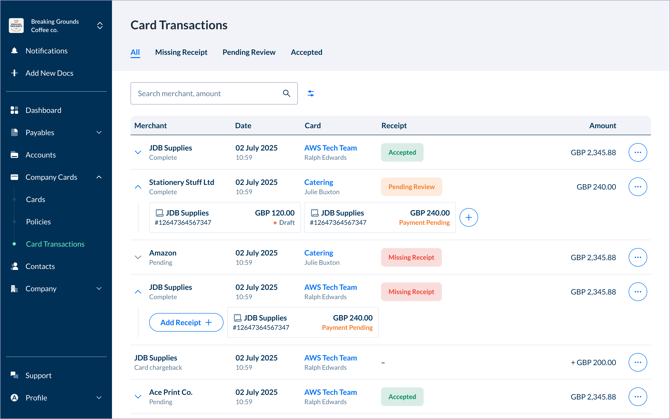
Card admins will see an additional option in the side menu – Card Transactions – where they can view all card transactions across all cards in the business.
This view can be filtered by a particular card or cardholder to help quickly find missing receipts and transactions that might need attention.
Transaction statuses
In the transaction list, under the merchant's name, you'll see a status – this shows which stage of the transaction process it's in.
