![Modulr_Logo_Black_LightOrange-1.png]](https://knowledge.modulrfinance.com/hs-fs/hubfs/Modulr_Logo_Black_LightOrange-1.png?height=40&name=Modulr_Logo_Black_LightOrange-1.png)
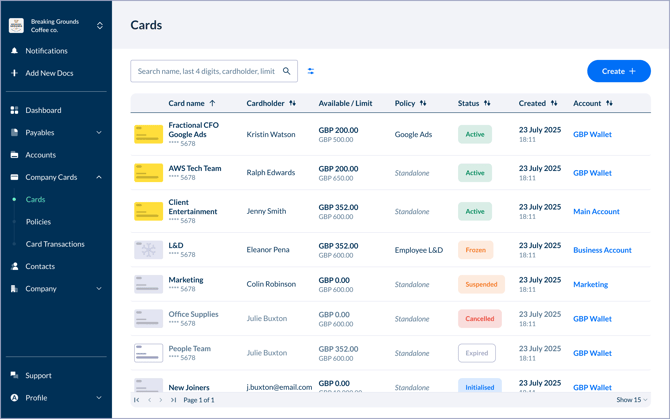
Who can view cards?
-
Card Admins see all company cards in the business and can filter by cardholder, policy and account. They can also manage other users' cards.
-
Team members (cardholders) see only their own cards so have a slightly different view of this page.
Can’t see the Cards page? Contact us to enable Company cards for your account.
Finding the Cards page
Sign in to the Modulr AP portal.
Select Company Cards from the side menu then Cards.
Searching & filtering the cards table
Use the table header controls and the filter drawer (select the icon next to the search box) to refine the list if you’re looking for a particular card.
-
Search by card name and the last 4 digits of a card; Admins can also search by cardholder.
-
Filters: status, cardholder (Admins), account, policy (Admins). You can select more than one.
-
Sort: Default is card name (A → Z). Click a column header to sort.
What the table shows
Columns can vary by your role and permissions:
-
Card
Card name and a masked card number. Select a row to view full card details and it’s transactions. The full card number is only visible to the cardholder. -
Cardholder (Admins only)
The person the card is assigned to. -
Policy (Admins only)
The spend policy attached to the card. -
Account (if you can access accounts)
The funding account for the card. You can select this to jump to the account. -
Created
The date and time the card was created (e.g. 02 August 2025 · 18:11). You can also sort this column by selecting the arrows in the table header. -
Limits
Shows the card’s lifetime limit. Where shown, Available indicates remaining spend against the lifetime limit.
Card statuses
Each card shows a status with a colour badge:
-
ACTIVE – green: Card has been activated and is available to use.
-
FROZEN – orange: Payments are temporarily blocked. Cardholders can freeze cards themselves if e.g they think the card’s details have been compromised, and also unfreeze Admins can also freeze other Cardholders' cards.
-
INITIALISED – blue: Card is set up but not yet fully activated.
-
EXPIRED – Grey: Card has met it’s expiration date and can no longer be used.
-
CANCELLED – Grey: Card has been cancelled – this can be a date set at creation that is before the natural expiry date. Cardholders can also cancel their own cards any time, and Admins can also cancel other Cardholders' cards.
Tip: If you’re a cardholder and your card was frozen by an administrator, you’ll see Unfreeze disabled when viewing the card. Contact your Admin to unfreeze.
