![Modulr_Logo_Black_LightOrange-1.png]](https://knowledge.modulrfinance.com/hs-fs/hubfs/Modulr_Logo_Black_LightOrange-1.png?height=40&name=Modulr_Logo_Black_LightOrange-1.png)
Use Transfer Between Accounts to move money between your Modulr accounts in different currencies. Before you confirm, you’ll see the exchange rate, mid-market rate, fee and expected arrival date.
The rate is fixed when you select Transfer.For example, you can move money from your GBP account to your EUR account before paying suppliers in Europe or using your EUR card.
The money leaves your source account immediately and arrives in your destination account on the settlement date, often on the same day. You’ll see the settlement date before you confirm the transfer. See When the money arrives.
Before you start
You can make cross-currency transfers when:
- Currency conversion is enabled for your business.
- You have a Modulr account for each currency. You can convert between GBP, EUR, USD and TRY in either direction. To open an account in another currency, see Adding More Accounts.
- You have permission to transfer money between accounts. You don’t need additional permission to convert currency.
Note: Conversions don’t require approval. If your business uses approval rules for payments, they won’t apply. The conversion is booked as soon as you select Transfer.
Making a cross-currency transfer
1. Start a transfer
Start from either place:
- Move Money: select Move Money in the side menu, then Select → next to Transfer Between Accounts.
- An account: open the account you want to send from, select Pay or Transfer, then choose Transfer Between Accounts.
2. Choose the From account
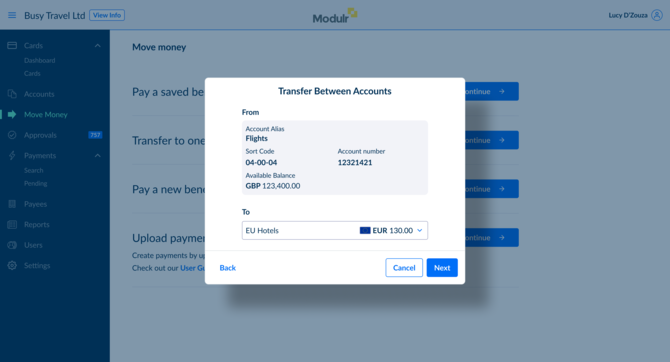
Select the account you want to transfer money from. The panel shows the account name, account details and Available Balance. Select Next.
3. Choose the To account
Open the To list. Accounts in the same currency as your From account appear first, followed by accounts in other currencies.
Choose an account in a different currency, then select Next. The form changes to a currency conversion form.
4. Enter the amount
The form has two amount fields:
- Convert from: the amount leaving your From account, in its currency.
- Convert to: the amount arriving in your To account, in its currency.
Type in either field. When you stop typing, the portal gets a live quote and fills in the other field. Before you type anything, a guide rate is shown between the two fields, for example “1 GBP = 1.2644 EUR”.
Which field you type in decides which amount is fixed. See Choosing which amount to fix.
5. Check the rate details
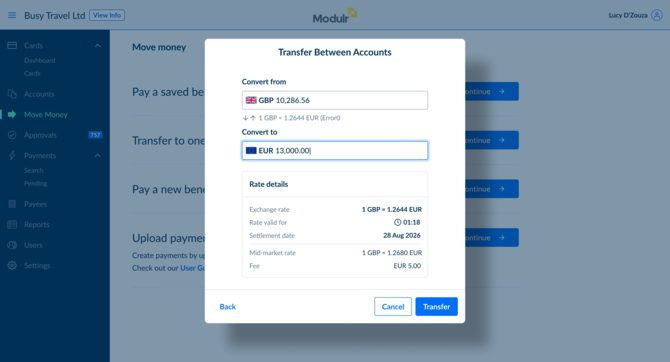
Once you have a quote, Rate details shows:
| Item | What it tells you |
|---|---|
| Exchange rate | The rate you get, for example 1 GBP = 1.2644 EUR. |
| Rate valid for | A countdown. Your quote is available before the count reaches zero. |
| Mid-market rate | The midpoint between buying and selling rates in the wholesale market, so you can see how far your rate sits from it. |
| Fee | The fee for this conversion, and the currency it’s charged in. |
6. Add a reference
Enter a Reference. This field is required.
Tip: Use an external reference to find the conversion later in Payments › Search. You can’t find conversions by searching for the amount.
7. Select Transfer
Select Transfer before the countdown ends. The conversion is booked at the rate shown.
While the conversion is being booked, Back and Cancel are unavailable. Stay on this screen until you see the result.
8. Transfer Complete
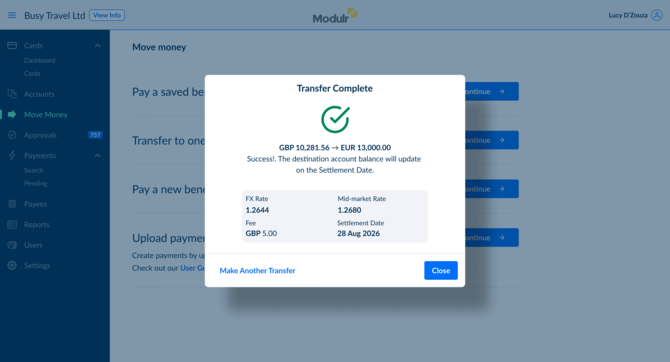
The Transfer Complete screen shows:
- the conversion, for example GBP 10,281.56 → EUR 13,000.00
- FX Rate and Mid-market Rate
- Fee
- Settlement Date: the day the money arrives in your To account
Select Make Another Transfer to start another transfer, or select Close.
Choosing which amount to fix
Enter the amount in the field that matters to you. The amount you enter stays fixed. The Portal calculates the other amount using the exchange rate, and the fee is charged in the calculated currency.
For example, you need exactly EUR 13,000.00 in your EU Hotels account. Enter 13,000.00 in Convert to. At an exchange rate of 1 GBP = 1.2644 EUR, the Portal enters GBP 10,281.56 in Convert from and charges the fee in GBP. EU Hotels receives exactly EUR 13,000.00.
When your quote expires
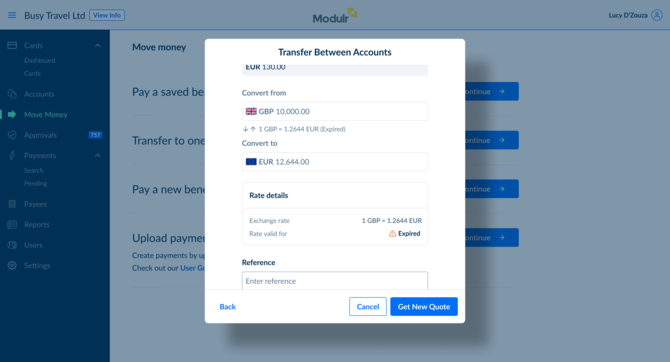
A quote is valid for a short time. The Rate valid for countdown shows how long you have left.
When the countdown reaches zero, select Get New Quote to get a new rate. The amount you entered stays the same, and the Portal recalculates the other amount using the new rate.
For example, if you entered EUR 13,000.00 in Convert to, you’ll still receive exactly EUR 13,000.00. The amount in GBP may change slightly.
When does the money arrive?
A conversion happens in two stages. The money leaves your From account when you select Transfer and arrives in your To account on the settlement date.
Until the conversion settles, you can’t spend the money. Convert it before you need to make a payment or use a card linked to the To account.
What determines the settlement date
A conversion booked before the daily cut-off settles on the same business day. A conversion booked after the cut-off settles on the next business day.
Cut-off times in the UK:
| Currency | Cut-off |
|---|---|
| TRY | 11:00 |
| EUR | 15:00 |
| GBP | 16:40 |
| USD | 20:30 |
When you convert between two currencies, the earlier cut-off applies. For example, a conversion from GBP to EUR uses the EUR cut-off of 15:00.
In practice:
- a TRY conversion booked after 11:00 arrives the next business day
- a GBP to EUR conversion booked on a Friday afternoon arrives on Monday
You don’t need to calculate the settlement date yourself. It appears with your quote and on the Transfer Complete screen.
Finding a conversion later
| Where | What you’ll see |
|---|---|
| From account transactions | The outgoing amount, from the moment you select Transfer. See Viewing a Single Account. |
| To account transactions | The incoming amount, on the settlement date. |
| Payments › Search | The amount sent, with the amount received shown beneath it (for example GBP 3,124.12 / EUR 4,131.53). Search by External Reference, Account ID or Created Date. Searching by Amount doesn’t return conversions. See Payment Search. |
| Payments › Exceptions | Conversions that failed, with both amounts. Expand the row to see the FX Rate; select More Info for the reason. See Payment Exceptions. |
Limits
- Maximum: you can convert up to £100,000 or the equivalent in another currency per transfer. The limit in EUR, USD or TRY changes with the exchange rate. If you’re near the limit, convert a smaller amount or split it across several transfers.
- Minimum: you must receive at least two of the currency’s smallest units (for example, EUR 0.02).
If something goes wrong
| Message | What it means | What to do |
|---|---|---|
| Quote expired. Please try again | The countdown ran out before the conversion was booked. | Select Get New Quote, check the new rate, then Transfer. |
| [Currency] amount is too high. Choose a lower amount. | The amount is over the maximum per conversion. | Enter a lower amount, or split it into several transfers. See Limits. |
| [Currency] amount is too low for FX transfer. Choose a higher amount. | The amount is below the minimum. | Enter a higher amount. |
| [Currency] account doesn’t have enough funds. Enter a lower amount. | The From account’s Available Balance doesn’t cover the conversion. Card authorisations can reduce the balance while the form is open. | Enter a lower amount, or add funds and try again. |
| You don’t have permission to make FX transfers | Currency conversion isn’t switched on for your business. | Ask your account manager. |
| FX transfers between chosen currencies aren’t supported | That currency pair isn’t available. | Choose a different To account. |
| There was an issue with obtaining quotes… / Couldn’t obtain a quote… | A temporary problem getting a rate. |
Try again in a few minutes. If it persists, contact Support. |
Frequently asked questions
My money has left one account but hasn’t arrived in the other. Is something wrong?
The money arrives on the Settlement Date shown on the Transfer Complete screen. Your To account won’t show the money until then.
If the settlement date has passed and the money still hasn’t arrived, contact Support
Can I fix the amount I receive instead of the amount I send?
Yes. Enter the amount in Convert to. See Choosing which amount to fix.
How do I know what the conversion costs me?
Check the fee and the difference between your exchange rate and the mid-market rate. Both are shown before you confirm the conversion.
Can I schedule a conversion for later, or set up a recurring one?
Not yet. The conversion is booked when you select Transfer.
Can I undo a conversion?
No. If you make a conversion by mistake, you can convert the money back using the exchange rate available at that time. This rate may differ from the original rate, and another fee will apply.
Can I pay a supplier in another currency directly?
Not in one step. First, convert the money into an account in the supplier’s currency. Wait for it to arrive on the settlement date, then pay the supplier from that account. See Pay a Saved Payee.
Do conversions need approval?
No. Conversions between your accounts don’t go through payment approvals, even if your business uses approval rules.
Anyone who can transfer money between accounts can convert currency. The conversion is booked as soon as they select Transfer.
I can’t find my conversion in Payments › Search.
Searching by Amount doesn’t return conversions. Search by External Reference, Account ID or Created Date instead. You can also check the transactions for the From account.
I use Modulr Accounts Payable. Is this the same thing?
No. This guide covers conversions in the Modulr Portal. For conversions in Accounts Payable, see the Accounts Payable FX guides.
Related guides
- Transfer Between Your Accounts (same currency)
- Viewing a Single Account
- Payment Search
- Payment Exceptions
- Adding More Accounts
