![Modulr_Logo_Black_LightOrange-1.png]](https://knowledge.modulrfinance.com/hs-fs/hubfs/Modulr_Logo_Black_LightOrange-1.png?height=40&name=Modulr_Logo_Black_LightOrange-1.png)
The Exceptions screen shows payments that ran into a problem: those that errored, were rejected during approval, or were cancelled.
Exceptions keeps 180 days of history and opens on the last 14 days by default, so recent problems are front and centre while older ones are still a couple of clicks away.
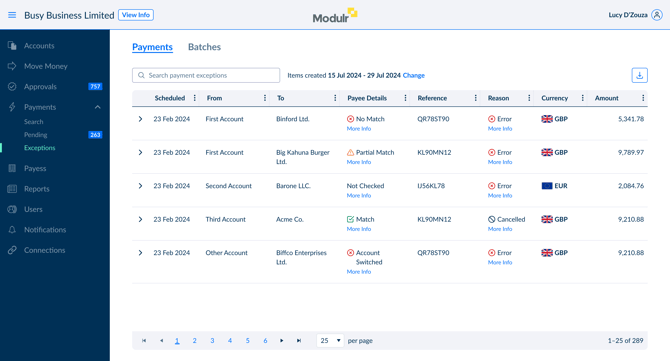
What the Exceptions screen shows
The Exceptions screen lists payments that are in a final, unsuccessful state:
- Error: the payment failed during processing (for example, invalid details). It will not send and needs to be set up again.
- Rejected: the payment was rejected during the approval workflow, so it never sent.
- Cancelled: the payment was cancelled by a user before it sent.
What you won’t see here: payments that are still due to send or awaiting funds (those are on the Pending screen) and payments that completed successfully, which you’ll find on Search or in Account Transactions.
Good to know before you start
- 14-day default, 180 days available. The screen opens on the last 14 days. You can widen or move the window to anywhere in the last 180 days using the date control.
- Search matches anything on screen. Search on any column (payee name, reference, amount, date) and partial words work.
- Very large lists. The list is filtered in your browser, which handles up to around 2,000 records at a time. Over a long window, a busy account can exceed that. If you can’t find something, narrow the date range, or use the Search screen, which has no limit.
How to view the Exceptions screen
- In the side menu, select Payments (you may need to expand it first).
- Select Exceptions.
The list opens on the Payments tab. Batches have their own tab. See The Batches tab below.
If you act for several customers (Delegates and multi-customer users): select Customers first, choose the customer, then open Payments › Exceptions from their menu. You view one customer at a time.
If you manage multiple customers (Partners): opening All Payments › Exceptions shows exceptions across all the customers you manage. To focus on one, select it under Customers first.
Changing the date range
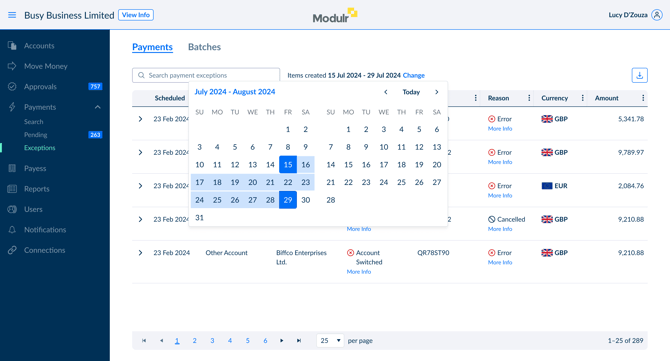
By default, the screen shows payments created in the last 14 days. The date range is shown above the table. For example, Items created 15 Jul 2024 – 29 Jul 2024.
- Select Change next to the date range.
- In the calendar, choose your start and end dates (anywhere within the last 180 days).
- The list updates to show exceptions created in that window.
Understanding the payments table
Each row is one payment. The columns are the same as on the Pending screen:
| Column | What it shows |
|---|---|
| Scheduled | When the payment was due to send. |
| From | The Modulr account the payment was to be made from. |
| To | The payee (beneficiary). |
| Payee Details | The Confirmation of Payee (CoP) result for the payee. Select More Info for detail. |
| Reference | The payment reference. |
| Reason | Why the payment is an exception: Error, Rejected or Cancelled. For an error, select More Info to see the reason it failed. |
| Currency | The payment currency, with its country flag. |
| Amount | The value of the payment. |
Select the chevron (›) at the start of a row to expand it for more detail, or the download icon at the top right to export the list.
Reason: why a payment is an exception
| Reason | Meaning | What to do |
|---|---|---|
| Error | The payment failed during processing — for example, invalid account details. | Select More Info to see why. The payment won’t send; set it up again with the correct details. |
| Rejected | An approver rejected the payment, so it never sent. | Re-create the payment if it should still go ahead. |
| Cancelled | A user cancelled the payment before it sent. | No action needed. Re-create it if it was cancelled by mistake. |
For the full payment lifecycle, see Payment statuses.
The Batches tab
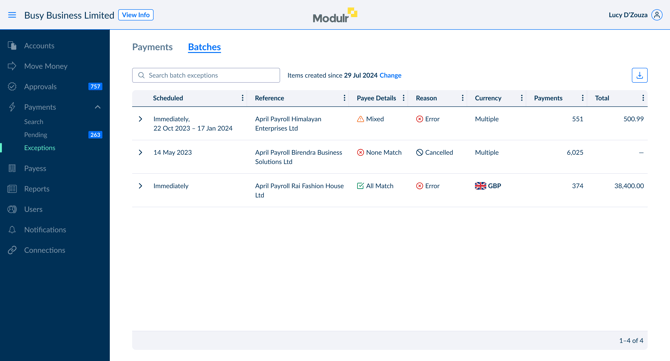
Batches that contain one or more errored, rejected or cancelled payments appear on the Batches tab. Select Batches at the top of the screen to switch to it.
Each row is one batch, with its reference, the overall Confirmation of Payee result (All Match, Mixed or None Match), currency, the number of payments it contains, and the total value. The same 180-day history and date range apply.
- Expand a batch with the chevron to see when it was created, its batch ID, the external reference, and who created it.
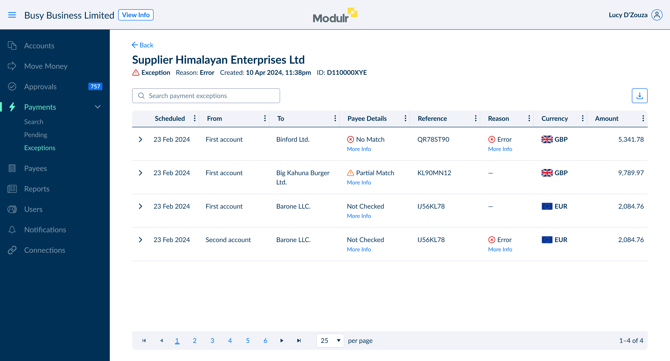
- Open a batch to see every payment inside it, each with its own status, so you can pinpoint which payments failed and why.
Can I take action on an exception?
Exceptions is for investigating, not fixing in place. Payments here have already errored, been rejected, or been cancelled, so there’s nothing to cancel or approve. To put things right:
- Re-create the payment with the correct details (for an error) or if it should still go ahead (for a rejection or an accidental cancellation).
- Export the list with the download icon if you need to share it or work through it offline.
Other screens you’ll still use
Exceptions is for investigating problems. It works alongside:
- Pending: manage payments that are still due to send.
- Search: find a specific payment or batch by ID, reference, amount or date, across the full lifecycle, with no volume limit.
- Approvals: review and approve payments awaiting sign-off.
- Account Transactions: account information, statmetns and reconciliation data.
FAQ
Can I retry a failed payment here?
No. Errored payments can’t be re-sent from Exceptions. Select More Info to see why it failed, then create a new payment with the corrected details.
Why can’t I find an exception from a few months ago?
Exceptions holds 180 days of history. Make sure your date range covers the period, and remember the list is capped at around 2,000 records. Narrow the dates, or use Search for older or higher-volume lookups.
What’s the difference between Rejected and Cancelled?
A payment is Rejected when an approver turns it down before it’s approved. It’s Cancelled when someone stops it after approval, while it’s still pending.
A whole batch failed. Where do I look?
Open the Batches tab, find the batch, and open it to see which payments inside errored and why.
I need to see completed payments too.
Use the Search screen, which covers the full lifecycle (approval, pending, exception and completed) in one result set.
