![Modulr_Logo_Black_LightOrange-1.png]](https://knowledge.modulrfinance.com/hs-fs/hubfs/Modulr_Logo_Black_LightOrange-1.png?height=40&name=Modulr_Logo_Black_LightOrange-1.png)
The Pending Payments screen shows the payments that haven’t been sent yet: those scheduled for a future date, and those waiting for funds. Nothing that has already failed, been rejected, or been cancelled appears here, those live on the Exceptions screen. This gives you a single, uncluttered view of what’s coming up, so you can cancel a payment or re-check a payee before it goes out.
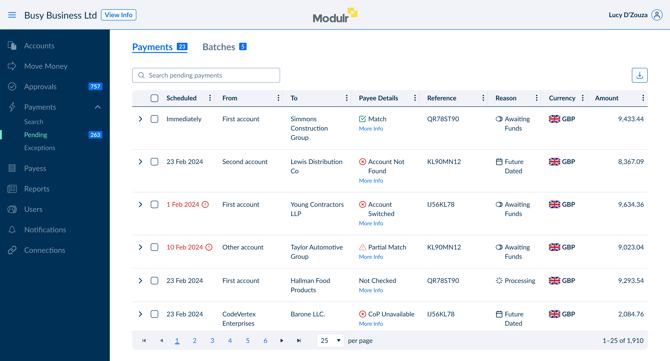
What the Pending screen shows
The Pending screen lists payments that are approved but not yet sent, specifically those that are:
- Scheduled for a future date: set up to send on a date that hasn’t arrived yet.
- Awaiting funds: due to send, but waiting for enough money to be available in the account. (You’ll only see this if Hold for Funds is enabled for your setup.)
You may also briefly see a payment marked Processing while it is being sent.
What you won’t see here: errors, rejections, and cancellations. Once a payment fails, is rejected, or is cancelled, it moves to the Exceptions screen. Payments still waiting for approval sit in Approvals.
Good to know before you start
- No time limit. Unlike the old screen, Pending shows every pending payment, not just the last few days. If a payment is pending, it’s here.
- Search matches anything on screen. You can search on any column shown in the table (payee name, reference, amount, date and more) and partial words work.
- Very large lists. The list is filtered in your browser, which handles up to around 2,000 payments at a time. If you run very high volumes and can’t see everything, use the Search screen, which looks across your full payment history with no limit.
How to view the Pending screen
- In the side menu, select Payments (you may need to expand it first).
- Select Pending.
The list opens on the Payments tab, showing your pending single payments. Batches have their own tab; see The Batches tab below.
If you act for several customers (Delegates and multi-customer users): first select Customers in the side menu, choose the customer you want, then open Payments › Pending from their menu. You view one customer at a time.
If you manage multiple customers (Partners): opening All Payments › Pending shows pending payments across all the customers you manage. To focus on one, select it under Customers first, then open Payments › Pending.
Understanding the payments table
Each row is one payment. The columns are:
| Column | What it shows |
|---|---|
| Scheduled | When the payment is due to send — a date, or Immediately. A date shown in red with a warning icon means the send date has passed but the payment hasn’t gone out yet (usually because it’s awaiting funds). |
| From | The Modulr account the payment will be made from. |
| To | The payee (beneficiary) the money is going to. |
| Payee Details | The Confirmation of Payee (CoP) result for the payee — see the table below. Select More Info for the full detail. |
| Reference | The payment reference. |
| Reason | Why the payment is still pending — for example Future Dated or Awaiting Funds. See Reason values. |
| Currency | The currency of the payment, with its country flag. |
| Amount | The value of the payment. |
Select the chevron (›) at the start of a row to expand it for more detail. Use the download icon at the top right to export the list.
Payee Details: Confirmation of Payee results
For GBP and EUR payments, Modulr checks whether the payee’s name matches the account details (Confirmation of Payee). The Payee Details column shows the result at a glance:
| Result | Meaning |
|---|---|
| Match | The name and account details match. |
| Partial Match | The details are close but not an exact match. Select More Info to see the name the bank holds. |
| Account Not Found | The account details couldn’t be found. |
| Account Switched | The account has been moved to another bank. |
| Not Checked | No check has been run yet. |
| CoP Unavailable | The check couldn’t be completed — for example, the receiving bank doesn’t support CoP. |
If a result looks wrong, you can re-run the check. See Run a payee check.
Reason: why a payment is still pending
The Reason column tells you what the payment is waiting for:
| Reason | Meaning |
|---|---|
| Future Dated | Approved and scheduled to send on a future date. It will send on that date if funds are available. |
| Awaiting Funds | Due to send now, but waiting for enough money in the account. It will send once funds arrive. (Requires Hold for Funds.) |
| Processing | The payment is being sent right now. This is a brief, in-progress state. |
For the full payment lifecycle, see Payment statuses.
Actions you can take
What you can do depends on the payment’s state and your permissions:
| Action | When it’s available |
|---|---|
| Cancel payment | While the payment is still pending and your role includes cancellation permission. |
| Payee check | For GBP and EUR payments, to re-run Confirmation of Payee. |
Don’t see a button? The payment may have already moved on (to Exceptions or to being sent), or your role may not include that permission. Admins can review role permissions in account settings; other users should ask their account administrator.
Cancel a payment
- Select the checkbox next to the payment (or several payments).
- In the action bar that appears, select Cancel.
- Confirm in the pop-up. The payment will not be sent, and it moves to the Exceptions screen as Cancelled.
Some payments can’t be cancelled once they reach a certain stage in the payment scheme. If that’s the case, the payment can’t be selected.
Run a payee check
- Select the checkbox next to one or more payments.
- Select Check Payees in the action bar to re-run Confirmation of Payee for the selected payments.
- The Payee Details column updates with the new result.
The Batches tab
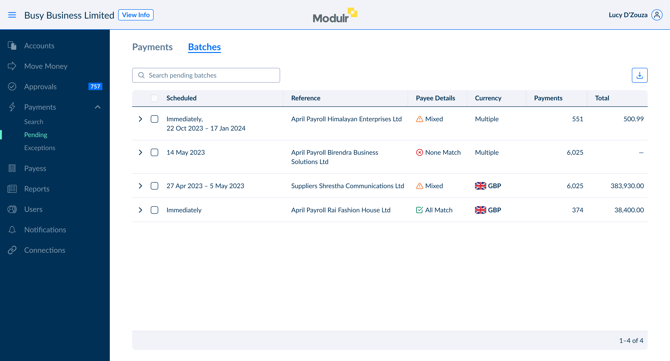
Payments submitted together (by file upload, the batch API or through third party software) appear on the Batches tab. Select Batches at the top of the screen to switch to it.
Each row is one batch:
| Column | What it shows |
|---|---|
| Scheduled | When the batch is due to send. A batch can span several dates. |
| Reference | The batch reference. |
| Payee Details | The overall Confirmation of Payee result for the batch — All Match, Mixed, or None Match. |
| Currency | The batch currency, or Multiple if it contains more than one. |
| Payments | How many payments are in the batch. |
| Total | The total value of the batch. |
- Expand a batch with the chevron to see its details: when it was created, the batch ID, the external reference, and who created it.
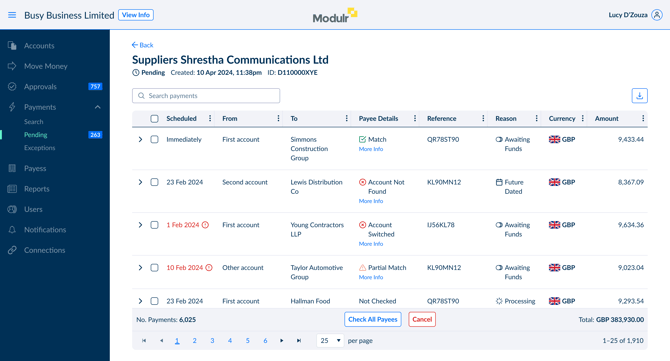
- Open a batch to see every payment inside it, each with its own status. From here you can select payments and Check Payees, or Cancel the ones that can still be cancelled.
- Cancel a batch. Only payments that can still be cancelled are affected; any that have already been sent, are processing, or have errored are left untouched. You’ll see a confirmation summarising exactly what will and won’t be cancelled (including the value per currency).
A quick way to check a payment hasn’t already been sent
Because Pending shows only payments that haven’t gone out yet, it’s a reliable way to avoid paying something twice:
- If a payment is on the Pending screen, it hasn’t been sent and you can still cancel it.
- If it isn’t on Pending, it has either already completed or moved to Exceptions.
- To confirm for certain, search for it by ID or reference on the Search screen, which covers the full payment lifecycle.
Other screens you’ll still use
Pending is for managing what’s coming up. It works alongside:
- Search: find a specific payment or batch by ID, reference, amount or date, across the full lifecycle.
- Exceptions: investigate errors, rejections and cancellations.
- Approvals: review and approve payments that are waiting for sign-off.
- Account Transactions: account info, statements and reconciliation data.
FAQ
Why has a payment disappeared from Pending?
It has left the pending state. It has either been sent (find it in Search or Account Transactions) or hit a problem (find it in Exceptions).
Why can’t I select a payment to cancel it?
Either it has reached a stage in the payment scheme where it can no longer be cancelled, or your role doesn’t include cancellation permission.
I can’t see all my payments. Where are they?
The Pending list is filtered in your browser and handles up to around 2,000 payments at once. If you run higher volumes, use the Search screen, which has no limit and covers your full history.
What’s the difference between cancelling and rejecting?
You cancel a payment that has already been approved and is pending. You reject a payment that is still waiting for approval, do that on the Approvals screen.
Does searching here work like the Search screen?
Not quite. Search here matches partial text on any column in the list you’re viewing. The Search screen looks up exact identifiers across your entire payment history, with no volume limit.
