![Modulr_Logo_Black_LightOrange-1.png]](https://knowledge.modulrfinance.com/hs-fs/hubfs/Modulr_Logo_Black_LightOrange-1.png?height=40&name=Modulr_Logo_Black_LightOrange-1.png)
Modulr’s portal gives you three payment screens, each designed for a different task. Instead of one crowded list, you go straight to the screen that matches what you’re trying to do:
| I want to… | Go to | Why |
|---|---|---|
| Find a specific payment or batch by ID, reference, amount or date | Search | Exact-match lookup across the full payment lifecycle, with 180 days of history and no volume limit. |
| See what’s still due to be paid and cancel or re-check it | Pending | A clean list of upcoming payments (future-dated and awaiting funds) with nothing that’s already failed or been cancelled. |
| Investigate a payment that didn’t go to plan | Exceptions | Errors, rejections and cancellations in one place, with 180 days of history (last 14 days by default). |
All three sit under Payments in the side menu.
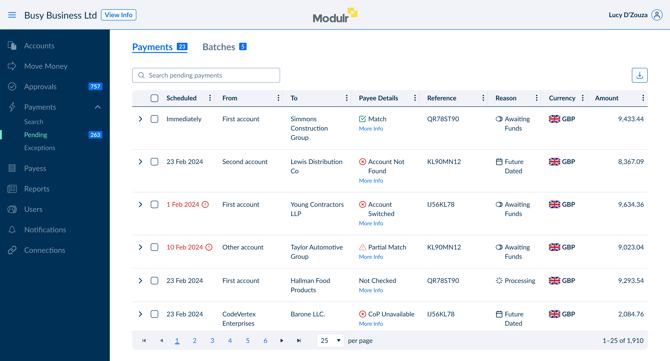
The three screens in short
Search is for pinpointing something you already have a reference for. Enter a payment ID, external reference, account ID, amount or date and Search looks across every stage (awaiting approval, pending, exception and completed) and returns exact matches. Because it queries the full database, it’s the right tool for high volumes and for anything you can’t find in the list-based screens. You can approve, reject, cancel or run a payee check straight from the results, based on your permissions.
Pending is for managing what’s coming up. It shows only payments that are approved but not yet sent—those scheduled for a future date and those awaiting funds. You can cancel a payment or re-run a payee check before it goes out.
Exceptions is for looking into problems. It shows payments that errored, were rejected, or were cancelled, with prominent date controls and 180 days of history. Keeping these apart from your upcoming payments means a failed payment never gets in the way of managing the ones that still need to go out.
Two more screens you’ll use alongside them
- Approvals: review and approve (or reject) payments waiting for sign-off.
- Account Transactions: completed payments, statemetns and reconciliation data.
If you used the old Pending Payments screen
The single Pending Payments screen has been replaced by these focused screens. Here’s where things now live:
| If you used to… | Now use |
|---|---|
| Scroll the Pending Payments list for upcoming payments | Pending |
| Look for a failed or cancelled payment in the same list | Exceptions |
| Search by Payment BID | Search (by ID, reference, amount and more). Alternatively, search on any column within Pending and Exceptions |
| Cancel a pending payment | Pending (select the payment › Cancel) |
The change means each list is shorter, cleaner, and matches the task in front of you.
